
The next stage of the Advent calendar focuses on further development, which becomes immediately noticeable once more shortlinks are used. The previous interaction patterns in the Overview view were geared toward individual operations and yielded only limited efficiency gains when processing many objects simultaneously. Today, this paradigm is being deliberately broken up and replaced by an interplay of new UI concepts that, for the first time, enable true multi-operation, context-sensitive work, and a much more stringent user interface.
The source code for this article can be found on GitHub at the following URL:https://github.com/svenruppert/url-shortener/tree/feature/advent-2025-day-08
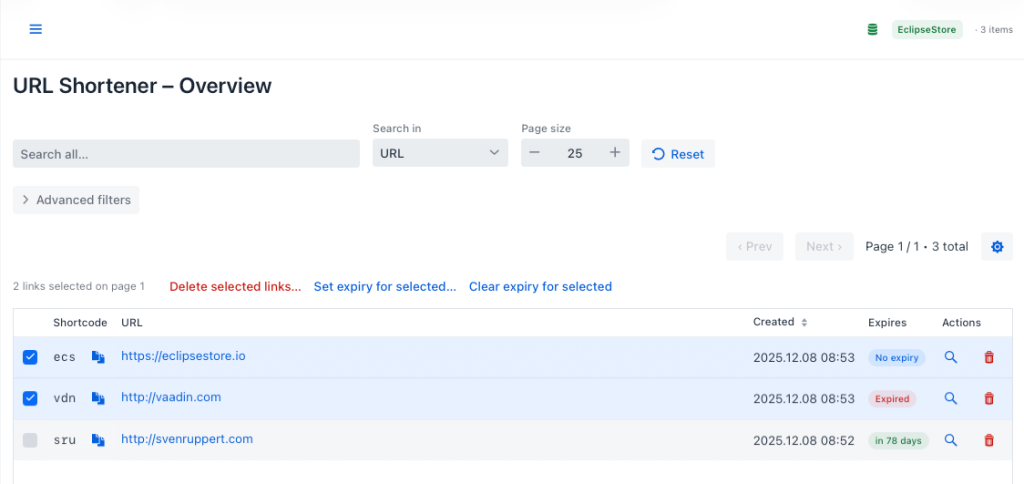
The changes focus on three aspects: first, the introduction of a valid multiple selection, which was previously missing and now forms the basis for all new mass operations. Second, the contextual action bar, which appears only when relevant and blends seamlessly into the workflow. Third, a visibly improved depth of interaction, which is reflected in consistent visual cues, reduced refresh cycles, and the ability to perform more complex processing steps – such as setting or removing expiration dates – for any number of entries at the same time.
These improvements should not be viewed as a collection of isolated features, but rather as a coordinated step toward a more mature UI architecture. They address a common issue in production environments: users manage not just one but dozens or hundreds of shortlinks. Any optimisation that reduces friction losses here directly affects work speed and quality. This is exactly where this step has its impact: the application is not only faster to use but also more tailored to professional use cases.
Multiple selection as the foundation for mass grid operations#
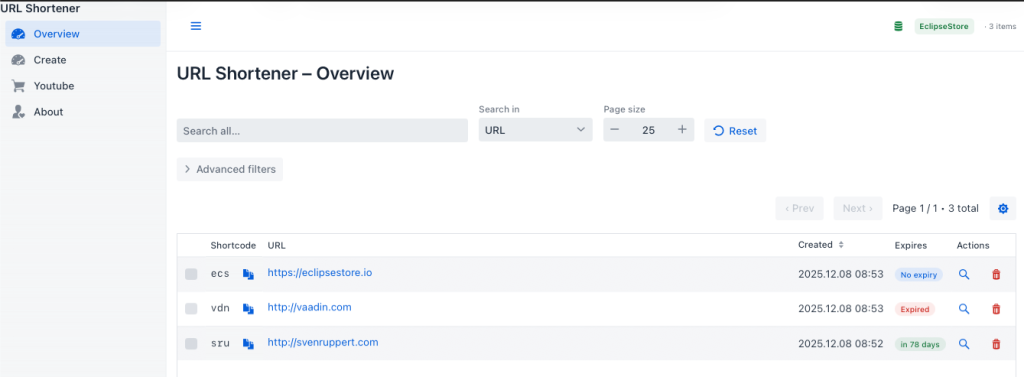
The transition from a single to a multiple selection marks a fundamental change in the interaction logic of the Overview view. Until now, working with shortlinks has been limited to isolated operations that always followed the same sequence: an entry was selected, edited, confirmed, and the process started over again. This structure was functional but proved to be a stumbling block when handling a larger number of entries in real-world applications.
With the introduction of multiple selection, this bottleneck will be resolved. The grid transforms from a linear list into a workspace where various objects can be brought into focus simultaneously. This capability is not only an ergonomic improvement, but also forms the technical and conceptual foundation for all subsequent mass operations. Only the possibility of marking any number of shortlinks at the same time makes context-sensitive work possible at all.
The technical anchoring of this multiple selection is initially done at a very inconspicuous point in the grid configuration. The overview view explicitly switches from single to multi-selection mode, which means that the grid is internally able to keep several entries as selected in parallel:
  private void configureGrid() {
    logger().info("configureGrid..");
    grid.addThemeVariants(GridVariant.LUMO_ROW_STRIPES, GridVariant.LUMO_COMPACT);
    grid.setHeight("70vh");
    grid.setSelectionMode(Grid.SelectionMode.MULTI);
With this change, the Vaadin grid’s selection mechanism will be expanded from the ground up. While in single-selection mode, the focus is technically always on exactly one entry in Grid.SelectionMode.MULTI allows multiple selections simultaneously. The basic interaction pattern mustn’t change for the user: the choice is still made via familiar gestures, such as clicks, supplemented by keyboard input as needed. The difference lies in the underlying representation: the grid now manages many marked shortlinks rather than a single active element.
To ensure that this multiple selection is not only visually effective, but also functionally reflected, it is integrated into the rest of the interface via a selection listener:
    grid.addSelectionListener(event -> {
      var all = event.getAllSelectedItems();
      boolean hasSelection = !all.isEmpty();

      bulkBar.setVisible(hasSelection);

      if (hasSelection) {
        int count = all.size();
        String label = count == 1 ? "link selected": "links selected";
        selectionInfo.setText(count + " " + label + " on page " + currentPage);
      } else {
        selectionInfo.setText("");
      }

      bulkDeleteBtn.setEnabled(hasSelection);
      bulkSetExpiryBtn.setEnabled(hasSelection);
      bulkClearExpiryBtn.setEnabled(hasSelection);
    });
Here, the abstract multiple selection is converted into a concrete UI state. The getAllSelectedItems() method returns the quantity of shortlinks currently marked in the grid. From this, a boolean aggregate state hasSelection is derived, which controls whether the downstream bulk bar is visible and whether the associated action buttons are enabled. At the same time, the selection size provides immediate feedback to the user: the number and context of the selection are summarised in a text component that makes the current page and the number of marked links visible. In this way, multiple-choice is not only managed internally but also translated into a clearly traceable, state-based interaction.
Of particular relevance is the fact that multiple selection has been seamlessly integrated into the existing UI model. The choice is made via established patterns, such as checkbox clicks or keyboard shortcuts, so users can work intuitively and productively immediately without adapting. At the same time, the visual feedback remains precise: selected rows are clearly highlighted, and changes in the selection immediately update the subsequent contextual UI components.
Thus, multiple selection provides the necessary foundation for bulk operations, such as deleting, setting or removing expiration times, and other future functions, to be implemented securely and consistently. It is the architectural pivot point for transitioning a purely entry-oriented tool into a scalable management tool for professional use cases.
The bulk action bar is a context-sensitive control centre.#
With the introduction of multiple selection, you can, for the first time, edit multiple short links at once. However, this capability alone is insufficient to establish a consistent, high-ergonomics mass-machining process. Only through the bulk action bar, which dynamically appears or disappears based on the current selection, does the overview view become a true hub for mass operations.
The central idea of this bar is that tools become visible only when they are semantically relevant. As long as no entry is selected, the interface remains tidy and slim. However, as soon as one or more rows have been selected, the function space opens for all operations that refer to a set of objects. This dynamic follows the principle of context-sensitive compression: the UI does not present all possible actions simultaneously, but only those that are meaningful and feasible at the current task.
In addition, the bulk bar is not only a visual addition but also has a clearly structured internal logic, which is already reflected at the field level of the view. In the overview view, the essential UI building blocks for mass operations are explicitly declared as separate components:
  private final Button bulkDeleteBtn = new Button("Delete selected links...");
  private final Button bulkSetExpiryBtn = new Button("Set expiry for selected...");
  private final Button bulkClearExpiryBtn = new Button("Clear expiry for selected");
  private final Span selectionInfo = new Span();
  private final HorizontalLayout bulkBar = new HorizontalLayout();
This structure makes it clear that the bulk bar is treated as an independent UI element with its own buttons and a separate information component. The actual integration takes place immediately after the search bar, so that the mass actions are visually and functionally in proximity to global navigation and filtering:
  public OverviewView() {
    add(new H2("URL Shortener – Overview"));
    initDataProvider();
    add(buildSearchBar());
    add(buildBulkBar());
    configureGrid();
    addListeners();
    addShortCuts();
  }
In this way, a vertical structure is created in which search, bulk bar, and grid deliberately follow one another: First, the data space is filtered; then the selected elements are contextualised via the bulk bar before the detailed interaction takes place in the grid.
The behaviour of the bulk bar itself is encapsulated in a dedicated factory method that defines both the visual appearance and the initial functional state:
  private Component buildBulkBar() {
    bulkDeleteBtn.addThemeVariants(LUMO_ERROR, LUMO_TERTIARY_INLINE);
    bulkSetExpiryBtn.addThemeVariants(LUMO_TERTIARY_INLINE);
    bulkClearExpiryBtn.addThemeVariants(LUMO_TERTIARY_INLINE);

    bulkDeleteBtn.getElement().setProperty("title", "Delete all selected short links");
    bulkSetExpiryBtn.getElement().setProperty("title", "Set the same expiry for all selected links");
    bulkClearExpiryBtn.getElement().setProperty("title", "Remove expiry for all selected links");

    bulkDeleteBtn.setEnabled(false);
    bulkSetExpiryBtn.setEnabled(false);
    bulkClearExpiryBtn.setEnabled(false);

    bulkBar.removeAll();
    selectionInfo.getStyle().set("opacity", "0.7");
    selectionInfo.getStyle().set("font-size", "var(--lumo-font-size-s)");
    selectionInfo.getStyle().set("margin-right", "var(--lumo-space-m)");

    bulkBar.add(selectionInfo,
                bulkDeleteBtn,
                bulkSetExpiryBtn,
                bulkClearExpiryBtn);

    bulkBar.setWidthFull();
    bulkBar.setDefaultVerticalComponentAlignment(Alignment.CENTER);
    bulkBar.setVisible(false);
    return bulkBar;
  }
In this method, the semantic roles of the individual elements are concretised. The theme variants particularly highlight the delete button, which is provided with an error theme and thus clearly distinguishes itself from less risky operations. The tooltips also enhance the explainability of actions by precisely describing each button’s purpose. All buttons start in a deactivated state; only the selection in the grid – as shown in the previous chapter – unlocks it in a targeted manner.
The layout definition makes it clear that the bulk bar is intended to be a full-width, horizontally aligned control centre. The selectionInfo area is slightly smaller but serves as a permanent context anchor that shows the user which mass scenario they are currently in. The visibility of the entire bar is initially set to false and controlled solely by the grid’s selection state. This ensures the bulk bar is visible only when it is needed. It first provides precise information on the selection status by displaying the number of selected shortlinks and the current page. Subsequently, the buttons that can be executed on this basis are unlocked. This mechanism prevents operational errors and ensures the user immediately recognises which actions can currently be performed.
Bulk Delete: Secure and scalable deletion operations in the grid#
With the transition to mass operations, deleting multiple shortlinks simultaneously is a key use case. The previous UI was clearly designed for deleting individual entries, which was insufficient for many professional use cases. Especially when it comes to administrative activities, migrations, or cleaning test data, there is a natural need to remove many entries in a single step. This is precisely where the new bulk delete function comes in.
The key requirement for this function is to balance two aspects: on the one hand, maximum efficiency when handling large volumes of entries, and on the other, high robustness against unintentional or incorrect entries. The system should work quickly, but never delete data carelessly. The implementation, therefore, follows a two-stage interaction pattern, deliberately designed to enable mass processing while ensuring the necessary operational safety.
The bulk delete always starts with the multiple selection in the grid. Once many shortlinks have been marked, the bulk action bar is activated, and the “Delete selected links…” option becomes available. Only when this action is deliberately chosen does a separate confirmation dialogue open. It does more than ask a simple query; it displays sample shortcodes of the selected entries, making the deletion process transparent and verifiable for the user. This preview is essential for larger datasets, as it helps validate the selection’s accuracy without reading the entire list of selected items.
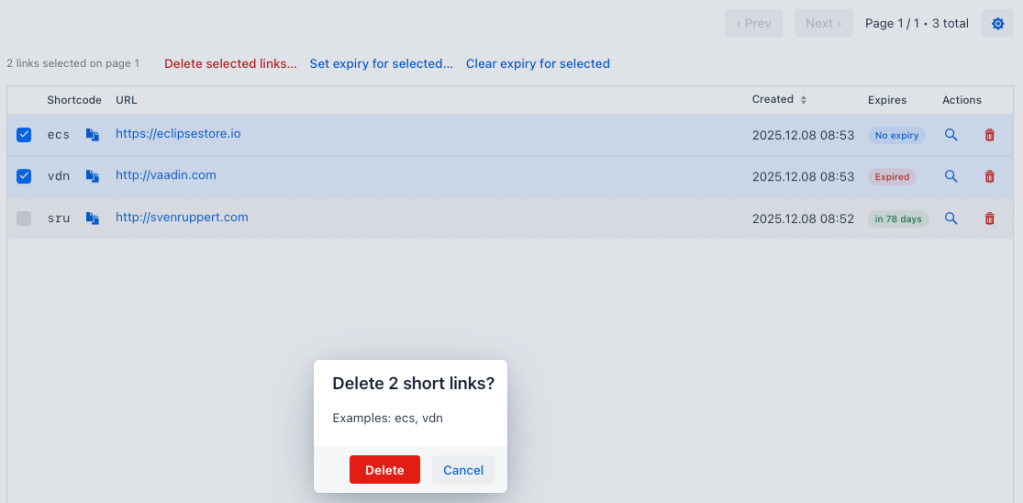
The confirmation pattern is designed to trigger the deletion process in a targeted manner without interrupting the workflow. Once confirmed, all highlighted shortlinks will be deleted one by one via the client API. The architecture supports both parallel and sequential deletion patterns; the current implementation uses a sequential approach to capture errors and report them to the UI precisely. Each deletion operation is evaluated, and the user receives a summary of the results that clearly documents both successful and failed deletions.
This combination of efficiency, security and transparency makes bulk delete a robust tool in a professional context. In the following, the relevant source texts are used to concretise and explain in detail how dialogue logic, API integration and feedback mechanisms interlock to realise a precisely controlled deletion process.
The entry point for bulk deletion is the confirmBulkDeleteSelected() method in the Overview view. It integrates the grid’s current multi-selection with the dialogue logic. It prepares both the preview of the entries to be deleted and the subsequent execution of the delete operations:
  private void confirmBulkDeleteSelected() {
    var selected = grid.getSelectedItems();
    if (selected.isEmpty()) {
      Notification.show("No entries selected");
      return;
    }

    Dialog dialog = new Dialog();
    dialog.setHeaderTitle("Delete " + selected.size() + " short links?");

    var exampleCodes = selected.stream()
        .map(ShortUrlMapping::shortCode)
        .sorted()
        .limit(5)
        .toList();

    if (!exampleCodes.isEmpty()) {
      String preview = String.join(", ", exampleCodes);
      if (selected.size() > 5) {
        preview += ", ...";
      }
      dialog.add(new Text("Examples: " + preview));
    } else {
      dialog.add(new Text("Delete selected short links?"));
    }

    Button confirm = new Button("Delete", _ -> {
      int success = 0;
      int failed = 0;

      for (var m : selected) {
        try {
          boolean ok = urlShortenerClient.delete(m.shortCode());
          if (ok) {
            success++;
          } else {
            failed++;
          }
        } catch (IOException ex) {
          logger().error("Bulk delete failed for {}", m.shortCode(), ex);
          failed++;
        }
      }

      dialog.close();
      grid.deselectAll();
      safeRefresh();
      Notification.show("Deleted: " + success + " • Failed: " + failed);
    });
    confirm.addThemeVariants(ButtonVariant.LUMO_PRIMARY, LUMO_ERROR);

    Button cancel = new Button("Cancel", _ -> dialog.close());

    dialog.getFooter().add(new HorizontalLayout(confirm, cancel));
    dialog.open();
  }
The first block already clarifies the implementation’s security concept. If, contrary to expectations, no selection is made, the process will be aborted with an explicit notification. The actual dialogue instance receives a header that explicitly shows the number of affected shortlinks, thereby clarifying the scope of the action.
Particularly interesting is how the preview of the entries to be deleted is generated. From the number of selected shortlinks, a sorted list of your shortcodes is created, which is limited to a maximum of five examples. This limitation ensures that the dialogue remains readable even with huge selections, while an appended ellipsis makes it clear that other elements are affected. This creates a concise but meaningful presentation of the selection.
Finally, the inner Confirm handler performs the actual deletion process. For each shortlink selected, the client API of the URL shortener backend is called via urlShortenerClient.delete(m.shortCode()). Successful and failed operations are counted; Exceptions are explicitly logged and taken into account as errors in the count. This count serves as the basis for the final user notification, which summarises the number of successfully deleted and failed entries.
After the loop completes, the dialogue is closed, the grid selection is cancelled, and a consistent update of the displayed data is triggered via safeRefresh(). The final notification provides precise, aggregated feedback on the operation outcome, thereby completing the interaction cycle of selection, confirmation, and presentation of results.
In addition, the bulk delete function can also be operated via the keyboard. The user can use a global shortcut to trigger the delete dialogue directly, provided that a selection has been made:
  private void addShortCuts() {
    UI current = UI.getCurrent();

    current.addShortcutListener(_ -> {
                                  if (globalSearch.isEnabled()) globalSearch.focus();
                                },
                                Key.KEY_K, KeyModifier.META);

    current.addShortcutListener(_ -> {
                                  if (!grid.getSelectedItems().isEmpty()) {
                                    confirmBulkDeleteSelected();
                                  }
                                },
                                Key.DELETE);
  }
This integrates the bulk delete into the everyday workflow: pressing the Delete key triggers the same confirmation dialogue as clicking the corresponding button in the bulk bar. Mouse and keyboard interaction thus yields the same result, significantly speeding up operations for experienced users without compromising the security of the operation.
Bulk Set Expiry: Uniform expiration dates for multiple shortlinks#
With the possibility of selecting several entries at the same time, it is possible for the first time to make even more complex metadata changes in a single step. One of the most functionally essential operations in this context is setting uniform expiration dates for multiple shortlinks. This feature is particularly relevant in administrative scenarios, such as when a large number of temporary links are set to expire simultaneously or when test or campaign data needs to be centrally controlled.
The design of the bulk set expiry function is intended to be both precise and efficient. Users should be able to set the date and time in a consistent dialogue without having to navigate through each entry individually. At the same time, the implementation must robustly handle erroneous inputs and provide clear feedback on the operation’s success or failure.
The dialogue-based setting of a common expiration date follows a three-step interaction pattern. First, the user selects all relevant shortlinks, which makes the bulk bar visible and enables the “Set expiry for selected…” option. In the second step, a custom dialogue opens to enter the date and time. Only in the third step, after the conscious confirmation, are the new expiration dates set for all selected entries and the grid is updated accordingly.
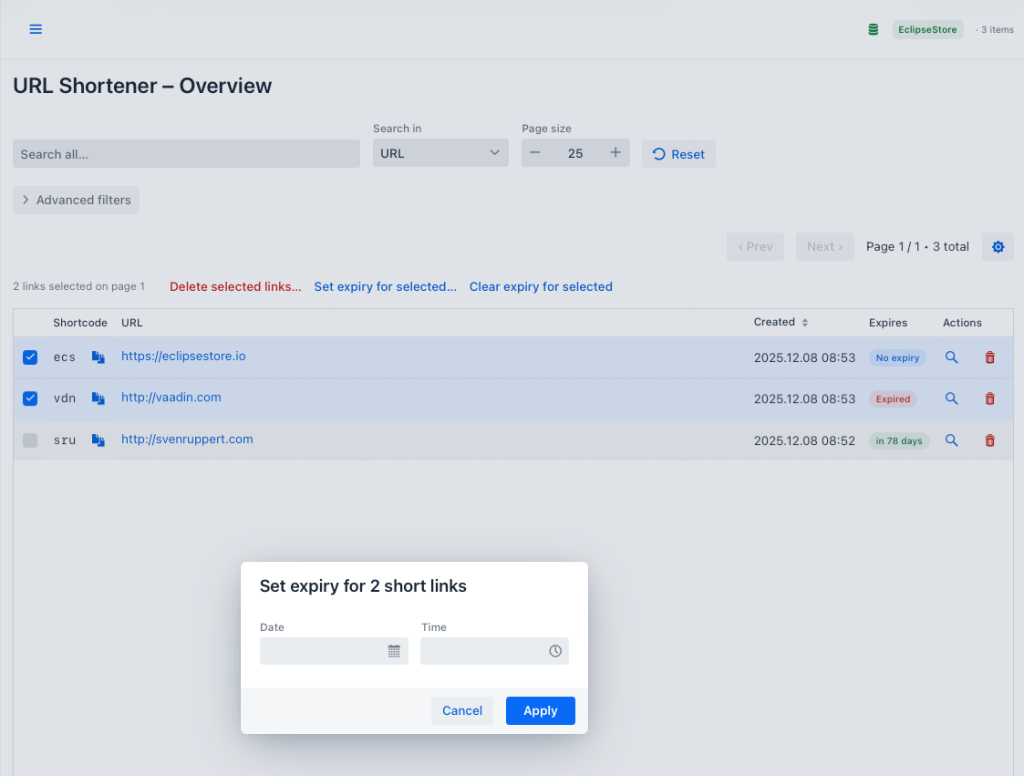
The entry point into this functionality is the openBulkSetExpiryDialog() method, which is triggered directly from the bulk action bar. It encapsulates both the dialogue-based recording of the expiration time and the later forwarding to the server API:
  private void openBulkSetExpiryDialog() {
    var selected = grid.getSelectedItems();
    if (selected.isEmpty()) {
      Notification.show("No entries selected");
      return;
    }

    Dialog dialog = new Dialog();
    dialog.setHeaderTitle("Set expiry for " + selected.size() + " short links");

    DatePicker date = new DatePicker("Date");
    TimePicker time = new TimePicker("Time");
    time.setStep(Duration.ofMinutes(15));

    HorizontalLayout body = new HorizontalLayout(date, time);
    body.setAlignItems(Alignment.END);
    dialog.add(body);

    Button cancel = new Button("Cancel", _ -> dialog.close());
    Button apply = new Button("Apply", _ -> {
      if (date.getValue() == null) {
        Notification.show("Please select a date");
        return;
      }

      var localTime = Optional.ofNullable(time.getValue()).orElse(LocalTime.of(0, 0));
      var zdt = ZonedDateTime.of(date.getValue(), localTime, ZoneId.systemDefault());
      Instant expiresAt = zdt.toInstant();

      int success = 0;
      int failed = 0;

      for (ShortUrlMapping m : selected) {
        try {
          boolean ok = urlShortenerClient.edit(
              m.shortCode(),
              m.originalUrl(),
              expiresAt
          );
          if (ok) success++;
          else failed++;
        } catch (IOException ex) {
          logger().error("Bulk set expiry failed for {}", m.shortCode(), ex);
          failed++;
        }
      }

      dialog.close();
      grid.deselectAll();
      safeRefresh();
      Notification.show("Updated expiry: " + success + " • Failed: " + failed);
    });
    apply.addThemeVariants(ButtonVariant.LUMO_PRIMARY);

    dialog.getFooter().add(new HorizontalLayout(cancel, apply));
    dialog.open();
  }
The method header already includes a security prompt that prevents the dialogue from opening accidentally without a valid selection. The dialogue configuration is deliberately kept minimalist and focuses on the core input elements: a DatePicker for the date and a TimePicker for the time. The TimePicker’s step size is set to 15 minutes, which is a practical compromise between precision and usability.
The core logic begins with validating the date. If no date is selected, the execution is cancelled, and a corresponding notification is issued. If a date is specified, the method creates a ZonedDateTime from it, which is then converted to an instant. This instant represents the new expiration time to be assigned to all selected shortlinks.
The following loop block illustrates the interface to the backend. For each shortlink, the edit operation is called:
urlShortenerClient.edit(m.shortCode(), m.originalUrl(), expiresAt);This operation is designed to change only the expiration time, while preserving the original URL value. Errors are handled individually and accounted for in both the UI and logging. Summing up the successful and failed updates results in aggregated feedback at the end of the process, which immediately tells the user how successful the bulk operation was.
Finally, grid.deselectAll() combined with safeRefresh() ensures that both the UI state and the grid data are updated consistently. The user is thus placed in a clean reset state without any manual intermediate steps, while the final Notification.show(…) summarises the operation results. The bulk set expiry function illustrates the interplay among the UI, server API, and error handling, and explains how this mechanism greatly simplifies managing large numbers of links.
Cheers Sven