
Since its inception, the URL shortener’s continuous development has focused on two core goals: a robust technical foundation without external frameworks and a modern, productive user interface that is both intuitive and efficient for power users. As part of the current development stage, an essential UI module has been revised – the OverviewView, i.e. the view in which users search, filter and manage all saved shortenings.
In the previous version, it became increasingly clear that the search and filtering components were decoupled. The basic search offered limited functionality, while the advanced filters were present but not integrated into a real control flow. In addition, the interaction between user actions such as reset, filter changes, paging, or opening the detail view was not sufficiently stabilised, which sometimes led to multiple refreshes or contradictory UI states.
The revision now implemented aims to achieve several structural objectives. The central focus was on standardising interactions: the search function was redesigned and integrated into a unified concept, including a global search bar with a clearly defined scope and a structured area for advanced filters. In parallel, the technical architecture of the refresh mechanisms has been revised to deliver a quieter, more reliable user experience.
This introduction first outlines the rationale for the changes and situates them within the broader development context. In the following chapters, the new global search is first described, followed by the synchronisation mechanisms, extended filters, internal refresh architecture, and grid improvements. The goal is not only a functional description but also a technical analysis of the mechanisms that enable these improvements and underpin future expansions.
The source code for this development step can be found on GitHub
and can be found here:https://github.com/svenruppert/url-shortener/tree/feature/advent-2025-day-07
The new global search#
The introduction of global search marks a central step towards a consistent yet flexible operating logic within the OverviewView. While in the previous version the search function consisted of several independent elements, a uniform interaction surface has now been created, whose behaviour is clearly defined and technically cleanly modelled. The basis is a single text field, supplemented by a search-area selection, which eliminates the prior separation between URL and shortcode searches.
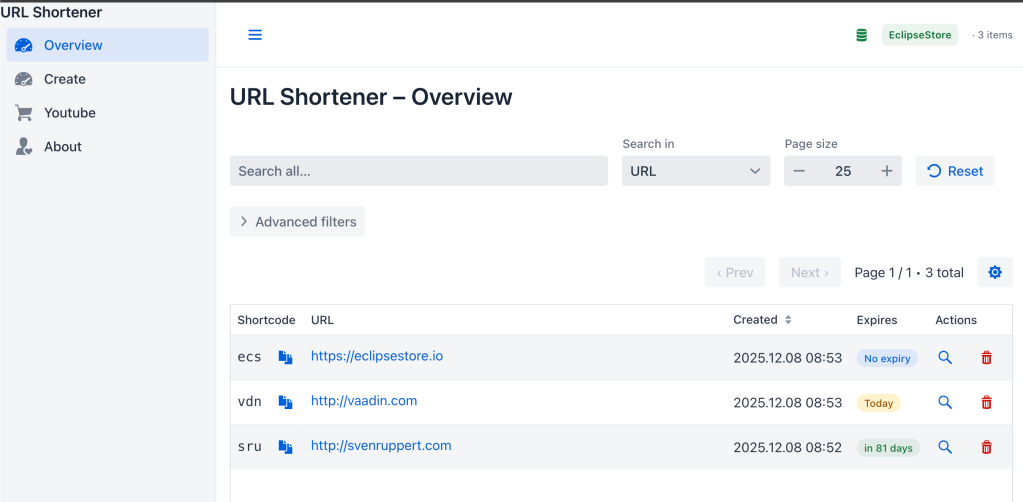
In the source code, this standardisation is first reflected in the explicit introduction of two central UI components, which are declared as fixed components of the view:
private final TextField globalSearch = new TextField();
private final ComboBox<String> searchScope = new ComboBox<>("Search in");
private final Button advancedBtn = new Button("Advanced filters", new Icon(VaadinIcon.SLIDERS));
This clearly defines that there is precisely one global search field and exactly one selection for the search area. Both components are created early in the view’s life cycle and are therefore available to all subsequent configuration steps. The actual design is done in the buildSearchBar() method, in which placeholders, width, and interaction behavior are specifically defined:
private Component buildSearchBar() {
    globalSearch.setPlaceholder("Search all...");
    globalSearch.setClearButtonVisible(true);
    globalSearch.setWidth("28rem");
    globalSearch.setValueChangeMode(LAZY);
    globalSearch.setValueChangeTimeout(VALUE_CHANGE_TIMEOUT);

    searchScope.setItems("URL", "Shortcode");
    searchScope.setValue("URL");
    searchScope.setWidth("11rem");

    pageSize.setMin(1);
    pageSize.setMax(500);
    pageSize.setStepButtonsVisible(true);
    pageSize.setWidth("140px");
    // ...
}
The global search is not treated as an arbitrary text field, but is deliberately modelled as a central control element. The placeholder “Search all…” makes it clear that, regardless of the specific search area, the user initially enters only one search term. The actual routing of this value into the appropriate technical field handles the logic associated with the search field and scope selection. Choosing LAZY mode, combined with an explicit timeout, ensures that server-side filter requests are triggered only when the user has completed input.
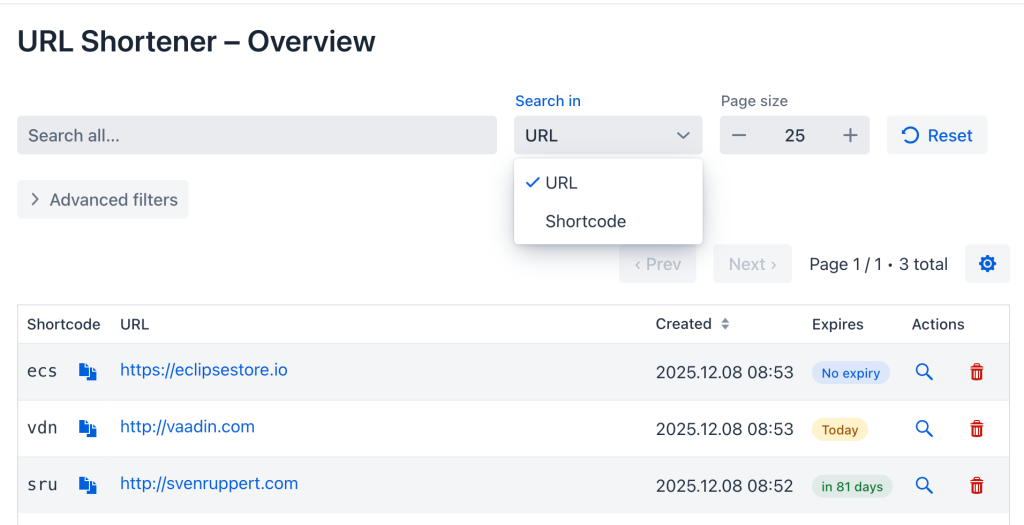
The search box serves as the starting point for all queries. As soon as the user enters, the content is assigned to either the URL or the shortcode component of the filter model, depending on the currently selected search area. This assignment is not only a UI-side mechanism but also a clear rule within the internal logic: the value of the global search field is always bound to exactly one of the two fields in the request object. The central implementation of this coupling is carried out via the ValueChangeListener of the global search field:
globalSearch.addValueChangeListener(e -> {
      var v = Optional.ofNullable(e.getValue()).orElse("");
      if (searchScope.getValue().equals("Shortcode")) {
        codePart.setValue(v);
        urlPart.clear();
      } else {
        urlPart.setValue(v);
        codePart.clear();
      }
    });
Here, each new value is first converted to a safe, non-null variant. The value of the ComboBox searchScope then decides whether the search term is interpreted as a shortcode filter (codePart) or a URL filter (urlPart). Only one of the two fields may be occupied at a time; the other is cleared automatically. This avoids ambiguous search situations in which multiple filters are applied simultaneously and uncoordinatedly. The global search field thus becomes the sole source for exactly one specific logical filter state.
Another major innovation is the tight coupling between the search field and the search area. The selection of the range – URL or shortcode – directly determines which part of the filter model is active. To ensure that this relationship remains consistent in both directions, the scope selection also reacts to changes and reflects the current search value in the appropriate field:
searchScope.addValueChangeListener(_ -> {
      var v = Optional.ofNullable(globalSearch.getValue()).orElse("");
      if ("Shortcode".equals(searchScope.getValue())) {
        codePart.setValue(v);
        urlPart.clear();
      } else {
        urlPart.setValue(v);
        codePart.clear();
      }
    });
While the text field listener reacts when the search term changes, it is responsible for maintaining consistent search state when the user subsequently changes the search scope. Both implementations follow the same pattern: a standard source value is interpreted as either a shortcode or a URL, and the inactive field is consistently emptied. This keeps the search interface not only visually clear, but also logical.
The behaviour of the global search is also designed to enable clear prioritisation when combined with the advanced filters. As long as the advanced filters are closed, the global search box controls the filter state independently. When the user opens the advanced area, the global search loses its active role and is relegated to the background, both visually and technically. This separation is encapsulated by a small helper method that explicitly determines the state in which the simple search may be:
private void setSimpleSearchEnabled(boolean enabled) {
    globalSearch.setEnabled(enabled);
    searchScope.setEnabled(enabled);
    resetBtn.setEnabled(true);
    globalSearch.setHelperText(enabled ? null : "Disabled while Advanced filters are open");
}
This method not only controls the activation and deactivation of the input elements but also provides context-sensitive help text that explains why global search is unavailable in open Advanced mode. This prevents two parallel filter sources from competing with each other and destabilizing the overall state. At the same time, the operating concept remains transparent, as the UI clearly communicates its status.
With this revamped global search, an intuitive, clear entry point has been created with a well-defined function from both the user and technical architecture perspectives. The search field, the scope selection, and the associated filter fields form a small, self-contained state machine whose behaviour is explicitly modelled in the code. The following chapters now examine how this search interacts with the other components and how the underlying synchronisation logic ensures consistent state transitions.
Search scopes and synchronisation logic#
While the global search offers a clear entry point, its real strength only becomes apparent through interaction with the underlying synchronisation logic. It is crucial that the selected search scope – i.e. the decision between URL and shortcode – does not remain just a visual interface detail, but is consistently transferred to the internal state model. The goal of this layer is to ensure that at any given time, it is clear which filter is active and which parts of the UI represent that filter.
From the user’s perspective, the behaviour can be divided into two central scenarios. In simple mode, the combination of the global search field and scope selection directly controls the filter state. The user implicitly determines, via the input context, whether to search for a target URL or a shortcode. In advanced mode, by contrast, the global search is reversed, and the detail fields fully control the filter state. This transition between modes is the core of synchronisation logic.
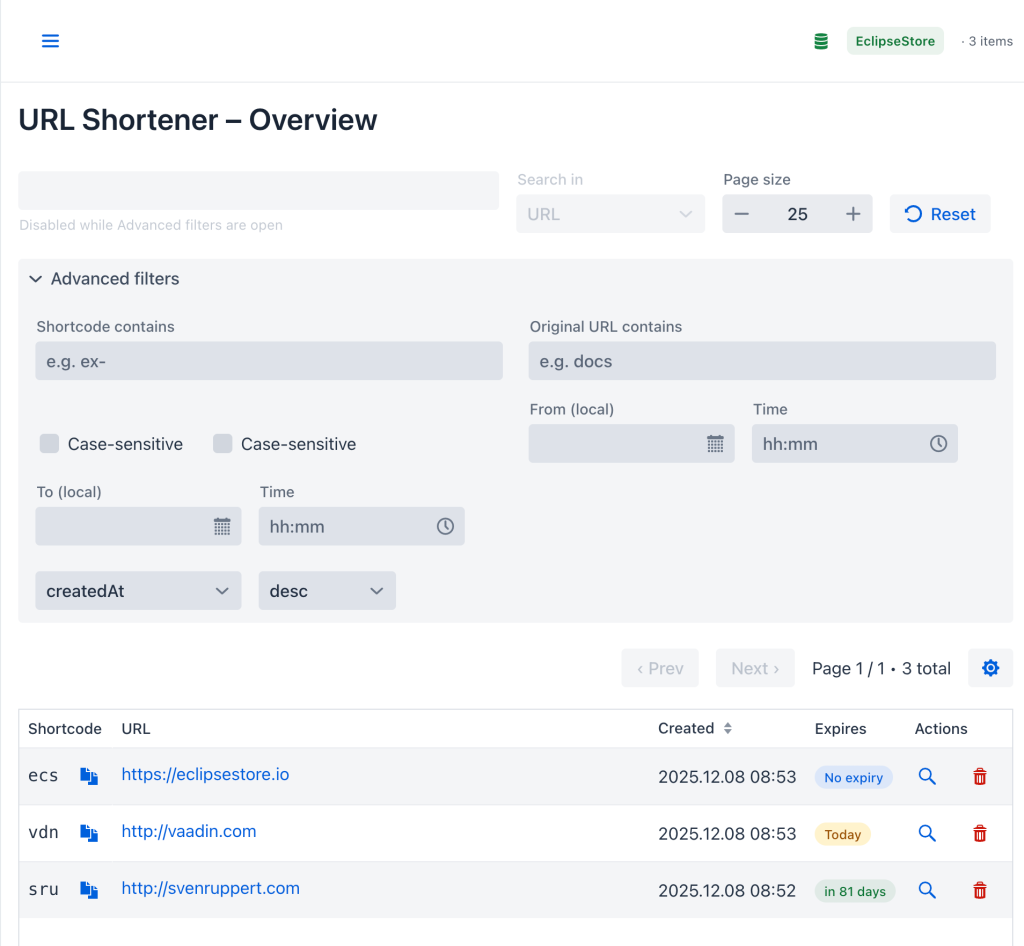
From a technical standpoint, this logic is based on a few, clearly defined principles. First, there is exactly one source for the effective search string at any given time. In simple mode, this is the global search field, which is mapped to either the URL or the shortcode component of the filter model, depending on the scope. In advanced mode, the dedicated URL and shortcode fields in the Advanced area are transferred directly to the request object. Second, there must be no competing states: if the user is working in Advanced mode, global search items are disabled; when the user returns to simple mode, the state is derived from the previous detail values.
The technical implementation of this switch begins where the View establishes the Advanced area as a controlling element. Central is the listener, which reacts to the opening and closing of the details container:
advanced.addOpenedChangeListener(ev -> {
  boolean nowClosed = !ev.isOpened();
  if (nowClosed) {
    applyAdvancedToSimpleAndReset();
  } else {
    setSimpleSearchEnabled(false);
  }
});
These few lines model the entire state change between the modes. When the user opens the Advanced section, the simple search is disabled. When closing, not only is the Advanced area collapsed, but a consolidation step is also triggered via applyAdvancedToSimpleAndReset(), which converts the previous detailed configuration into a simple, global search state.
To ensure that disabling the simple search does not lead to an inconsistent UI impression, the View encapsulates the necessary adjustments in a small helper method:
private void setSimpleSearchEnabled(boolean enabled) {
  globalSearch.setEnabled(enabled);
  searchScope.setEnabled(enabled);
  resetBtn.setEnabled(true);
  globalSearch.setHelperText(enabled ? null : "Disabled while Advanced filters are open");
}
The method controls both the interactivity of the search field and scope selection as well as the accompanying help text. Once the Advanced section is opened, the Basic Search values are retained, but cannot be changed. At the same time, the helper text makes it clear that global search is currently disabled. At this level, the first part of the principle described above is implemented: There is always only one active source that determines the effective filter state.
The opposite direction – from advanced mode back to simple mode – is more complex because a choice has to be made here. In the Advanced area, a shortcode fragment and a URL fragment can be entered at the same time. Both would be suitable as filters but cannot be readily combined into a single global search field. This is precisely where applyAdvancedToSimpleAndReset() comes in:
private void applyAdvancedToSimpleAndReset() {
  String code = Optional.ofNullable(codePart.getValue()).orElse("").trim();
  String url = Optional.ofNullable(urlPart.getValue()).orElse("").trim();

  final boolean hasCode = !code.isBlank();
  final boolean hasUrl = !url.isBlank();
  final String winnerValue = hasCode ? code : (hasUrl ? url : "");
  final String winnerScope = hasCode ? "Shortcode" : "URL";

  try (var _ = new RefreshGuard(true)) {
    codePart.clear();
    codeCase.clear();
    urlPart.clear();
    urlCase.clear();
    fromDate.clear();
    fromTime.clear();
    toDate.clear();
    toTime.clear();

    sortBy.clear();
    dir.clear();
    sortBy.setValue("createdAt");
    dir.setValue("desc");

    searchScope.setValue(winnerScope);
    if (!winnerValue.isBlank()) {
      globalSearch.setValue(winnerValue);
    } else {
      globalSearch.clear();
    }

    setSimpleSearchEnabled(true);
    globalSearch.focus();
  }
}
The method begins by evaluating the codePart and urlPart detail fields. Both values are defensively converted to strings and then checked for non-empty content. Two things are derived from this: a “winner” value and a “winner” scope. If a shortcode fragment is set, it takes precedence over any URL fragment. Only if there is no shortcode and only a URL is the URL considered a winner. If both are empty, an empty search string is used, and the scope is reset to “URL”. In this way, the prioritisation described in the running text is implemented in practice, without ambiguity.
In the second block of the method, all Advanced fields are consistently reset. In addition to the text fields for shortcodes and URLs, this applies to the case-sensitivity checkboxes and the time-slot and sorting fields. The Advanced range is thus returned to a defined initial state. Thanks to the RefreshGuard, this reset does not occur through multiple individual refreshes; instead, it is treated as an aggregated state change that culminates in a controlled reload.
Only then is the previously determined winner state reflected into the simple search. The global search scope is set to winnerScope; the global search string is either filled with winnerValue or left empty. Finally, the simple search is reactivated, and the focus is set to the global search field. This provides the user with a straightforward, reduced interface after closing the Advanced area, reflecting the active filter state derived from the previously selected detail values.
Overall, this yields a small but precise state machine. Opening the Advanced pane shifts control entirely to the detail fields and visibly disables global search. Closing triggers a controlled reduction to a single, easy-to-understand filter state. The synchronisation logic remains fully comprehensible in the code, is encapsulated in a few clearly structured methods, and can be extended with additional filter fields if necessary without violating the basic principle. On this basis, the following chapters can now examine other aspects of filtering in detail, such as the extended filter fields and the refresh architecture.
Advanced Filters: Conception and UI Design#
The global search serves as a compact entry point to the OverviewView’s filter logic. However, their range of functions is deliberately limited to ensure a low barrier to entry and rapid operation. As soon as the requirements go beyond a simple text fragment, this model reaches its natural limits. This is where Advanced Filters come into play, giving users much finer control over short URL filtering while providing a structured, visually comprehensible interface.
Conceptually, the Advanced area was designed as a deliberately separate mode. It should not be understood as a mere extension of the existing search field, but rather as an independent filter context that becomes active only when the user explicitly opens it. This decision takes into account two considerations. On the one hand, the simple mode should not be burdened with options unnecessary in many everyday scenarios. On the other hand, advanced filter operations – such as the combination of a shortcode fragment, a URL substring, a time window, and sorting – should have a clearly identifiable workspace in which all associated input elements are spatially bundled.
In the source code, this concept already begins at the field level, where the components for the Advanced area are clearly declared separate from the global search:
private final TextField codePart = new TextField("Shortcode contains");
private final Checkbox codeCase = new Checkbox("Case-sensitive");
private final TextField urlPart = new TextField("Original URL contains");
private final Checkbox urlCase = new Checkbox("Case-sensitive");
private final DatePicker fromDate = new DatePicker("From (local)");
private final TimePicker fromTime = new TimePicker("Time");
private final DatePicker toDate = new DatePicker("To (local)");
private final TimePicker toTime = new TimePicker("Time");
private final ComboBox<String> sortBy = new ComboBox<>("Sort by");
private final ComboBox<String>dir = new ComboBox<>("Direction");
These fields define the semantic dimensions of the advanced filters: textual filtering via shortcode and original URL (optional), an explicit time window, and sorting criteria. The fact that they are listed as separate attributes of the view expresses the separate mode described above: they do not belong to the global search but to an individual, extended view of the data space.
From a UI perspective, this separation manifests as a details container that makes the advanced filters collapsible. When closed, the Advanced section does not occupy any additional space and only indicates, via its header, that more options are available. Only when opened does a structured form unfold, which arranges the various filter dimensions into logically related groups. The concrete design begins with the configuration of the fields themselves:
codePart.setPlaceholder("e.g. ex-");
codePart.setValueChangeMode(LAZY);
codePart.setValueChangeTimeout(VALUE_CHANGE_TIMEOUT);
codePart.addValueChangeListener(_ -> safeRefresh());

urlPart.setPlaceholder("e.g. docs");
urlPart.setValueChangeMode(LAZY);
urlPart.setValueChangeTimeout(VALUE_CHANGE_TIMEOUT);
urlPart.addValueChangeListener(_ -> safeRefresh());

sortBy.setItems("createdAt", "shortCode", "originalUrl", "expiresAt");
dir.setItems("asc", "desc");

fromDate.setClearButtonVisible(true);
toDate.setClearButtonVisible(true);
fromTime.setStep(Duration.ofMinutes(15));
toTime.setStep(Duration.ofMinutes(15));
fromTime.setPlaceholder("hh:mm");
toTime.setPlaceholder("hh:mm");
The text fields for the shortcode and URL provide meaningful placeholders and, like the global search, use a lazy ValueChange mode with a timeout. This prevents a new filter run from being triggered immediately with each input, while at the same time the filters respond quickly to changes. The sorting pair sortBy is preassigned to you, with permissible values, and thus is embedded within a defined space of possible sorting strategies. Convenience functions supplement the date and time fields: Clear buttons, fixed 15-minute time grids, and placeholders for the time format help users enter data while reducing the risk of invalid values.
The spatial structure of Advanced Filters is designed to visually group related information. Instead of placing all components on a single long line, the implementation supports multiple upstream layouts. First, the date and time fields are merged into two groups:
var fromGroup = new HorizontalLayout(fromDate, fromTime);
fromGroup.setDefaultVerticalComponentAlignment(Alignment.END);
var toGroup = new HorizontalLayout(toDate, toTime);
toGroup.setDefaultVerticalComponentAlignment(Alignment.END);
The two horizontal layouts, „fromGroup“ and „toGroup“, ensure that date and time visually appear as a coherent unit. The vertical alignment at the bottom creates a calm, uniform appearance, even when field heights vary slightly. These groups are then embedded in a FormLayout, which forms the actual responsive structure:
FormLayout searchBlock = new FormLayout();
searchBlock.setWidthFull();
searchBlock.add(codePart, urlPart, new HorizontalLayout(codeCase, urlCase));
searchBlock.add(fromGroup, toGroup);
searchBlock.setResponsiveSteps(
    new FormLayout.ResponsiveStep("0", 1),
    new FormLayout.ResponsiveStep("32rem", 2),
    new FormLayout.ResponsiveStep("56rem", 3)
);
Here, the textual filters – shortcode and URL – as well as the associated case sensitivity checkboxes are arranged together in a block. Below this are the groups for the time slot. ResponsiveSteps determines how many columns the layout may use at different widths. Below 32 rem, a single-column layout is selected; at medium width, two columns are available; and above 56 rem, the layout can be extended to three columns. In this way, the input mask remains readable and well-structured across wide desktop views and narrower windows or split screens.
The sorting control is deliberately visually decoupled from the search block, but positioned on the same horizontal axis. For this purpose, a separate toolbar area will be set up:
sortBy.setLabel(null);
sortBy.setPlaceholder("Sort by");
sortBy.setWidth("12rem");

dir.setLabel(null);
dir.setPlaceholder("Direction");
dir.setWidth("8rem");

HorizontalLayout sortToolbar = new HorizontalLayout(sortBy, dir);
sortToolbar.setAlignItems(FlexComponent.Alignment.END);
By removing the ComboBox labels and using placeholders, the interface remains compact without sacrificing intelligibility. The fixed width ensures stable alignment, while the horizontal grouping makes it clear that both fields functionally belong together. The alignment at the bottom blends with the rest of the header, where the filter boxes are also aligned on a common baseline.
Finally, the search block and sort bar are merged into a single header layout that constitutes the visible content of the Advanced area. This header layout is then embedded in a Details component:
HorizontalLayout advHeader = new HorizontalLayout(searchBlock, sortToolbar);
advHeader.setWidthFull();
advHeader.setSpacing(true);
advHeader.setAlignItems(FlexComponent.Alignment.START);
advHeader.expand(searchBlock);
advHeader.getStyle().set("flex-wrap", "wrap");
advHeader.setVerticalComponentAlignment(FlexComponent.Alignment.END, sortToolbar);

advanced = new Details("Advanced filters", advHeader);
advanced.setOpened(false);
advanced.getElement().getThemeList().add("filled");

setSimpleSearchEnabled(!advanced.isOpened());
The advHeader ensures the search block occupies the available space, while the sorting tools are anchored to the right edge. Enabling flex-wrap allows the header to wrap to multiple lines within a limited width without disrupting the logical proximity of the elements. The Details component includes this header and makes the entire Advanced section collapsible. When closed, only the title “Advanced filters” remains visible; when opened, the complete form unfolds. The application of the filled theme also provides the area with a visual demarcation from the surrounding layout.
In terms of content, the Advanced Filters design prioritises making the essential dimensions of the data directly accessible. Shortcodes and destination URLs serve as textual entry points, and the search can be configured as case-sensitive or case-insensitive. The temporal context of the short URL – such as the creation or expiration interval considered – is mapped via combined date and time fields that explicitly work in the user’s local context. Finally, the sort field and sorting direction provide fine control over the order of displayed entries, enabling newly created or soon-expiring links to be brought to the foreground.
This expanded range of functions should not leave the user confronted with a confusing number of control elements. The precise spatial separation within the hinged container, the well-thought-out grouping of the fields, and the responsive arrangement therefore not only provide an aesthetic but, above all, a cognitive relief. The user can choose whether to use the standard global search options or switch to expert mode, which provides more detailed control over the database.
On this basis, the Advanced area can be seamlessly embedded into the rest of the architecture in the following chapters. In particular, the connection between the synchronisation logic and the refresh architecture described above demonstrates how the UI design and the internal state engine work in concert to keep even more complex filter requests stable and easy to understand.
Cheer Sven